
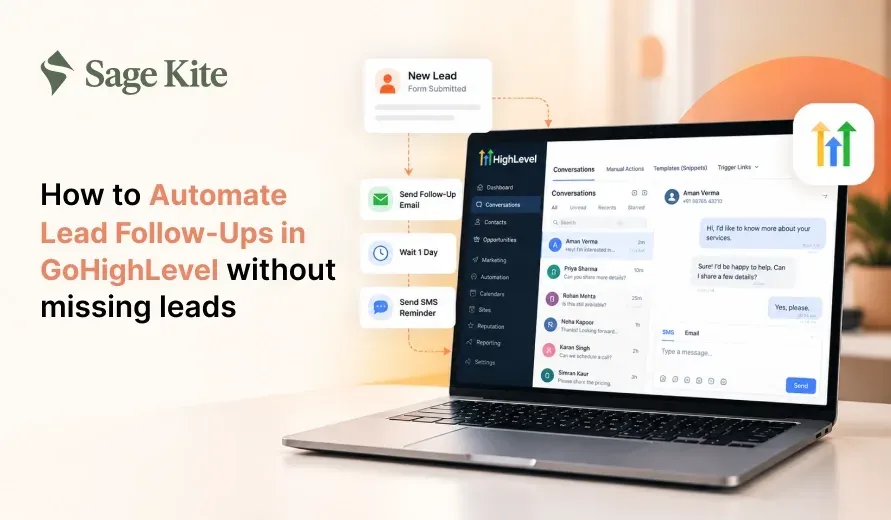
Quick answer: A business can automate lead follow-ups in GoHighLevel, a custom CRM solution teams use, by building a workflow that starts when a new lead enters the system. The workflow sends a text and an email within a minute and creates a task for a team member. It then waits, checks whether the lead replied or booked, and sends additional messages on a set schedule. It stops once the lead answers, books a call, or is marked as lost. When the triggers, wait times, and stop rules are set correctly, no lead goes unanswered.
Why Do Businesses Lose Leads Even When They Use a Business CRM System?
A CRM stores contact details, but it does not contact anyone on its own. Most missed leads stem from simple gaps in the process:
- A form submission arrives at night, and nobody replies until the next afternoon.
- A team member plans to call back but forgets after a busy day.
- A lead replies to a text, and the message sits in an inbox no one checks.
- Follow-ups stop after one attempt, even though many buyers need several touchpoints before they answer.
Speed matters a great deal. A person who fills out a form is thinking about the problem right now. If a competitor replies in two minutes and you reply in two hours, the competitor usually wins the conversation. Automation closes this gap because the first reply does not depend on someone being at a desk. This is one of the key benefits of custom CRM setups.
What Does Lead Follow-Up Automation Mean in GoHighLevel’s Custom CRM Solutions?
GoHighLevel is an all-in-one CRM platform for businesses that combines a CRM, a pipeline, a calendar, texting, email, phone calls, forms, and a workflow builder. Lead follow-up automation uses the workflow builder, one of the CRM automation tools within the platform, to run a set of actions whenever a lead meets a condition.
A workflow has three parts:
- Trigger: The event that starts the workflow, such as a form submission, a missed call, a new Facebook lead, or a tag being added.
- Actions: The steps that run, such as sending an SMS, sending an email, adding a tag, or moving the lead to a pipeline stage.
- Conditions and waits: The rules that pause the workflow or send it down a different path, such as “if the contact replied, stop.”
Once you understand these three parts, you can build almost any follow-up sequence.
What Should You Set Up Before Building the Workflow?
Workflows work best when the basics are in place. For custom CRM solutions to run smoothly, complete these items first:
- A clear pipeline. Create stages such as New Lead, Contacted, Booked, Proposal Sent, Won, and Lost. Each stage should mean one thing only.
- A working phone number and email domain. Connect a business number for texts and calls. Set up your sending domain with SPF, DKIM, and DMARC records so emails reach the inbox instead of spam.
- Text message registration. If you send texts to people in the United States, complete the A2P 10DLC registration. Without it, carriers may block your messages.
- A connected calendar. Link a calendar so leads can book a call straight from a message.
- Tags and custom fields. Use tags like “new-lead,” “replied,” and “booked,” and custom fields for details such as service type or budget. Workflows use these to decide what happens next.
- A named owner for each lead. Decide who receives tasks and alerts so responsibility is never unclear.
- A plan for extra features. If the standard options fall short, custom CRM development can add the fields, pipelines, or connections your team needs.
How Do You Build a Lead Follow-Up Workflow Step by Step With Custom CRM Solutions?
Below is a practical build that works for most service businesses, agencies, clinics, and real estate teams, and it suits CRM for small and medium-sized businesses that run with limited staff.
Step 1: Choose the trigger
Open Automation, create a new workflow, and add a trigger. The most common choice is Form Submitted, but you can add several triggers to one workflow, such as Facebook Lead Form Submitted, Customer Replied, or Missed Call. Using several triggers in one workflow keeps your leads from scattering across different sequences.
Step 2: Send an instant reply
Add an SMS action first, with no delay before it. Keep it short and personal, and use the contact’s first name:
“Hi {{contact.first_name}}, this is Priya from Bright Smile Dental. Thanks for reaching out. When is a good time for a quick call today?”
Right after the text, add an Email action with a little more detail, such as what happens next and a booking link. The text catches the lead’s attention, and the email gives them something to read later.
Step 3: Add the lead to the pipeline
Add a Create/Update Opportunity action. Move the lead to the “New Lead” stage and assign it to a team member. This gives your staff a clear list of who needs a human response.
Step 4: Create a task and send an internal alert
Add a Create Task action, such as “Call new lead within 15 minutes,” with a due time. Pair it with an Internal Notification so the assigned person receives a message on their phone. Automation sends the first reply, but a real person should follow up with a call whenever possible. Calls tend to convert better than messages alone.
Step 5: Add a wait step and a condition
Add a Wait step for two hours, then an If/Else condition that checks whether the lead has replied or booked an appointment. You can check for the “replied” tag, a change in the pipeline stage, or the appointment status.
- If the lead replied or booked, end the workflow and let the team member take over.
- If not, continue to the next message.
Step 6: Build the follow-up schedule
Repeat the message, wait, and check pattern. The table below shows a schedule many teams use as a starting point.
| Timing | Channel | Purpose |
|---|---|---|
| Within 1 minute | SMS and email | Confirm the request and offer a call time |
| 2 hours later | SMS | Short reminder with the booking link |
| Next day, morning | Share a helpful answer to a common question | |
| Day 3 | SMS and call task | Ask if they still need help |
| Day 5 | Share a case result or customer review | |
| Day 7 | SMS | Final check with a clear yes or no question |
| Day 14 | Move to a longer-term nurture list |
Adjust the pace to your industry. A home repair lead may need a faster pace than someone shopping for a long-term service contract.
Step 7: Stop the workflow when the lead responds
This step is the one most people skip. In the workflow settings, turn on the option to stop the workflow when the contact replies, and set a Goal Event for booked appointments. A Goal Event removes the lead from the sequence once the desired outcome occurs. Without it, someone who has already booked could keep receiving “Still interested?” messages, which looks careless.
Step 8: Handle the lead who never answers
At the end of the sequence, add the “no-response” tag, move the opportunity to a “Nurture” or “Lost” stage, and add the contact to a monthly email list. A lead who ignores you today may need your service in three months, so maintain a low-frequency touch.
How Can You Catch Leads From Missed Calls and Other Sources?
Leads do not only arrive through forms. GoHighLevel can respond to several other entry points:
- Missed call text back: If nobody picks up, the system sends a text such as “Sorry we missed you. How can we help?” This turns a lost call into an open conversation.
- Website chat widget: Chat messages can create a contact and start the same workflow.
- Ad leads: Facebook and Instagram lead forms can connect directly, so new leads receive a reply within seconds.
- Inbound texts and emails: A workflow can tag new conversations and alert your team.
- Calendar bookings: Add reminders before the appointment and a “sorry we missed you” message afterward, with a link to rebook.
When every source feeds the same pipeline, you can see all your leads in one place.
How Do You Keep Automated Messages From Sounding Robotic?
Automated messages work better when they read like a note from a real person. A few habits help:
- Write in short sentences, as you would speak.
- Use the contact’s first name and mention the service they asked about.
- Send texts from a named person instead of a generic company name.
- Ask one question per message, so the lead knows what to answer.
- Vary the wording across the sequence. Sending the same line five times feels like spam.
- Provide something useful in some messages, such as a price range, a short video, or an answer to a common question.
What Rules Should You Follow When Sending Automated Messages?
Follow the laws that apply to your location and audience. In the United States, texting rules require consent before sending marketing messages, and you must honor opt-outs immediately. Include a line such as “Reply STOP to opt out” in your first text. Email laws such as CAN-SPAM require a physical address and a working unsubscribe link. If you contact people in Europe, GDPR consent rules also apply. GoHighLevel has a built-in Do Not Disturb setting that you can apply to contacts who ask to stop. Also set quiet hours so that messages do not go out late at night.
What Mistakes Cause Follow-Up Automation to Fail?
These are the most common problems with custom CRM solutions when they are set up for follow-ups:
- No stop rule. Leads who already replied keep getting messages.
- Too many messages too fast. Five texts in one day push people to block your number.
- Skipping the human call. Automation starts the conversation, but people close the sale.
- Unclear ownership. If tasks go to nobody in particular, nobody completes them.
- Ignoring the time zone. A message sent at 3 a.m. local time looks careless.
- Never testing. Always run a test contact through the workflow before turning it on. Check the timing, the merge fields, and the stop conditions.
- Set and forget. Review your workflow each month and update messages that no longer fit your offer.
How Do You Measure Whether Your Custom CRM Solutions Are Working?
Track a few numbers inside GoHighLevel’s reports and pipeline views:
- Speed to first reply: The goal is under one minute for automated replies and under fifteen minutes for a human call.
- Reply rate: The percentage of leads who answer any message.
- Booking rate: The percentage of leads who schedule a call or visit.
- Lead-to-customer rate: The share of leads who become paying customers.
- Stage drop-off: Where in the pipeline leads stall the most.
If reply rates are low, test a new first message. If booking rates are low, shorten the path to your calendar. If many leads stall in one stage, add a task or a message at that point.
Final Words
Missed leads usually come from slow replies, forgotten calls, and follow-ups that stop too soon. A well-built workflow fixes all three by replying in seconds, assigning a person to call, and continuing the sequence until the lead answers or books. With custom CRM solutions set up around your pipeline, stop rules, and message schedule, your team can respond to every lead on time and focus its effort on real conversations. The benefits of custom CRM are most clearly seen in faster replies and fewer lost enquiries.
Frequently asked questions
Can GoHighLevel send follow-ups automatically?
Yes. Its workflow builder can send texts, emails, voicemails, and internal alerts based on triggers, waits, and conditions you set. Among the platform's CRM automation tools, it is the one most teams rely on for follow-ups.
How fast should the first follow-up be?
Send the first automated reply within one minute of the lead's arrival. Aim for a personal call within fifteen minutes during business hours.
How many follow-up messages are too many?
Most businesses send six to eight touchpoints over two weeks, then move the lead to a slower monthly nurture list. Monitor your opt-out rate to see whether the pace is right.
How do I stop the sequence when a lead replies?
Enable the workflow setting that stops the sequence when a contact replies, and add a Goal Event for booked appointments.
Do I still need a person to follow up?
Yes. Automation handles speed and consistency, while a team member handles questions, pricing discussions, and trust. The best results come from using both.